🐙Lifebot · companion app
Pixel Pomodoro guide

Focus with a tiny timer buddy

Pixel Pomodoro is a small timer that floats above your other windows. Pick a task and a length, and its belly fills like a pie as time passes. Each session you finish or give up on can be logged with one key, so Lifebot can tell you how you actually spent your focus time.

Getting started

Open Pixel Pomodoro

It's installed with Lifebot. Open it from Lifebot's Apps tab (the Open App button under Pixel Pomodoro), or like any other app: Spotlight or Applications on a Mac, Start → Lifebot on Windows, or your applications menu on Linux.
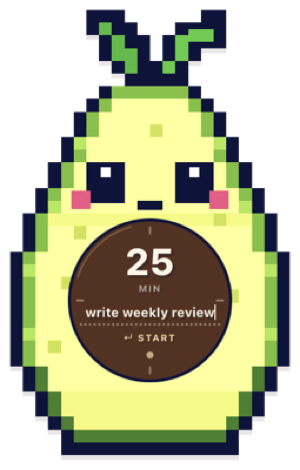
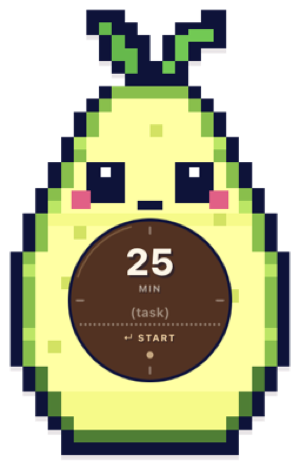
Pixel Pomodoro: the avocado buddy with 25 MIN, a task field and ↵ START

What you see

  • The buddy: a pixel character. You can drag it anywhere on your screen.
  • The round timer in its belly: minutes on top, then your task, then ↵ START.
  • A small dot at the bottom of the timer switches buddies.
  • Minimize and close buttons appear at the top when you move the pointer over the buddy, and fade again after a couple of seconds.

It stays on top of other windows and follows you across desktops and full-screen apps, so your timer is always in view.

First time on a Mac? If you see "Pixel Pomodoro" would like to access files in your Documents folder, click Allow. That's where it saves your sessions.

When to use it

Start a session every time you sit down to do one thing: a draft, your inbox, a chapter, a bug. Name the task, pick a length, and work until it rings. If something pulls you away, abandon it honestly and say why in the note. That's all the discipline it needs.

What you get back comes from Lifebot, not the timer. Every session, finished or abandoned, is one line in a log that Lifebot reads. After a few days it can tell you how much you really focused, when in the day you get interrupted, and which tasks you keep walking away from. A good rhythm: pick the next item on your Typewriter paper, run a Pomodoro on it, tick it off when the timer rings.


Step by step · 1 min to learn

Your first session

  1. Set the minutes

    The minutes box is ready to type in when the app opens. Type a number from 1 to 180. It starts at 25, the classic Pomodoro length.

  2. Name the task

    Click (task) and type what you're working on, up to 40 characters: write weekly review, inbox, chapter 3. It's optional, but a name makes Lifebot's answers much more useful.

  3. Press Enter to start

    Your task appears in capitals above a countdown, and a tan wedge sweeps round the timer like a clock hand, showing how much time has passed.

    Timer running: WRITE WEEKLY REVIEW 15:40 with the elapsed wedge filled
    A session running
  4. When time's up, press Enter

    The timer flashes, beeps twice a second, and the window shakes. Press Enter to stop it. If nothing happens, click the buddy first so it has your keyboard, then press Enter.

    Alarm state: the timer flashing at 00:00
    Time's up
  5. Log it

    You'll see COMPLETED, the planned and actual time, and your task. Type an optional note (what you got done, what got in the way; up to 140 characters). Press Enter or click LOG to save. Press Esc or click SKIP to throw the session away without saving.

    COMPLETED: 25 MIN · 25:00 DONE, “write weekly review”, a note, LOG and SKIP buttons
    Session completed: add a note, then LOG
You've got it when the timer goes back to the start screen after you press LOG. Your session is now one line in your Pomodoro log.
How to use Pixel Pomodoro
Stopping early

Abandoning a session

Got interrupted? Press Ctrl + C while the timer runs. That's the Control key on a Mac too, not Command.

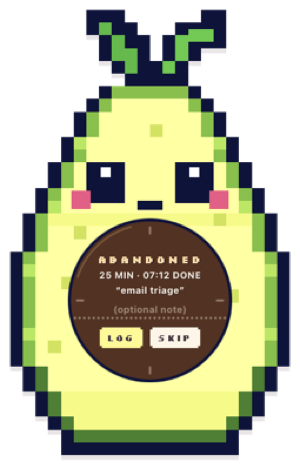
ABANDONED: 25 MIN · 07:12 DONE, “email triage”

The title changes to ABANDONED and shows how long you lasted. Add a note about why, like got pulled into a call or too tired after lunch, and press Enter to log it.

Log abandoned sessions too. Lifebot uses them to work out when in the day you tend to get pulled away, and your notes tell it why.

There's no pause button. If you need a break, abandon the session and start a fresh one when you're back.

Make it yours

Choose a buddy

Click the small dot at the bottom of the timer to switch to the next buddy. Your choice is remembered next time. The dot only shows before a session starts.

Avocado
Avocado
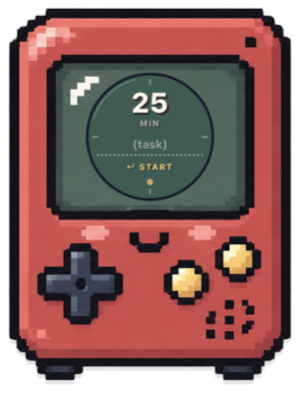
Console
Console
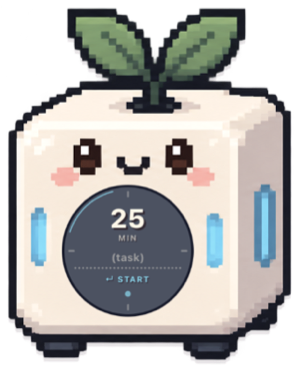
Focus Cube
Focus Cube
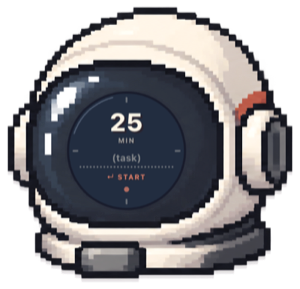
Astronaut
Astronaut
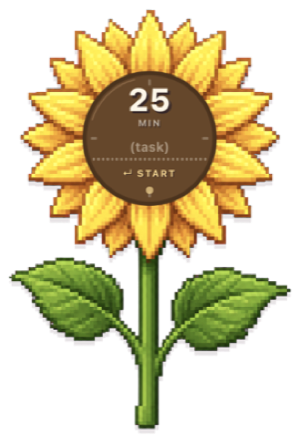
Sunflower
Sunflower
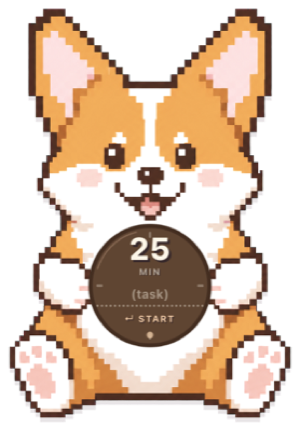
Bobby the dog
Bobby
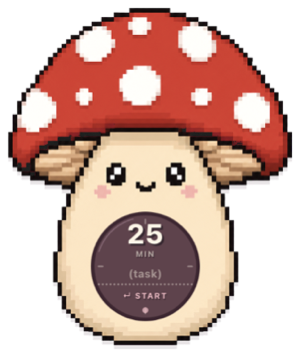
Mushroom
Mushroom
Coco
Coco
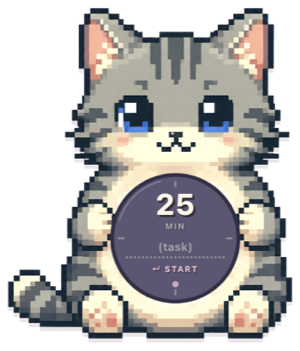
Cat
Cat

Reference

Keyboard shortcuts

KeyWhenWhat it does
EnterTyping minutes or a taskStart the session
Ctrl + CTimer runningAbandon and go to the log prompt
EnterAlarm ringingStop the alarm and go to the log prompt
EnterLog prompt (even while typing a note)LOG: save the session
EscLog promptSKIP: don't save

Moving and hiding

Companion app

How Pixel Pomodoro works with Lifebot

Every logged session is added as one line to a plain text file. Lifebot reads that file whenever you ask about your focus, and for your evening summary. Nothing to connect; it works as soon as both are installed. To see it happen, do Try it: one plan, one session, one question in the install guide, which has a demo of each step.

The file is Documents/Lifebot/your profile/PixelPomodoro/pomodoro-log.md. Your profile name is shown at the bottom left of the Lifebot window. Each line has the start time, planned and actual length, task, and whether you completed it ([x]) or abandoned it ([ ]). Your note sits on the line under it.

- [x] 2026-09-30 05:47 — 25 min planned, 25:00 elapsed — "write weekly review" — completed - outline done, draft tomorrow - [ ] 2026-09-30 06:05 — 25 min planned, 07:12 elapsed — "email triage" — abandoned - got pulled into a call

You can open it in any text editor. It's yours; Lifebot only reads it.

Ask Lifebot

How much did I focus today, and on what?
What's my focus time by day this week? Which day was best?
When do I usually abandon sessions, and what do my notes say about why?
Given how today has gone so far, should I do another session or stop?

Changing where it saves

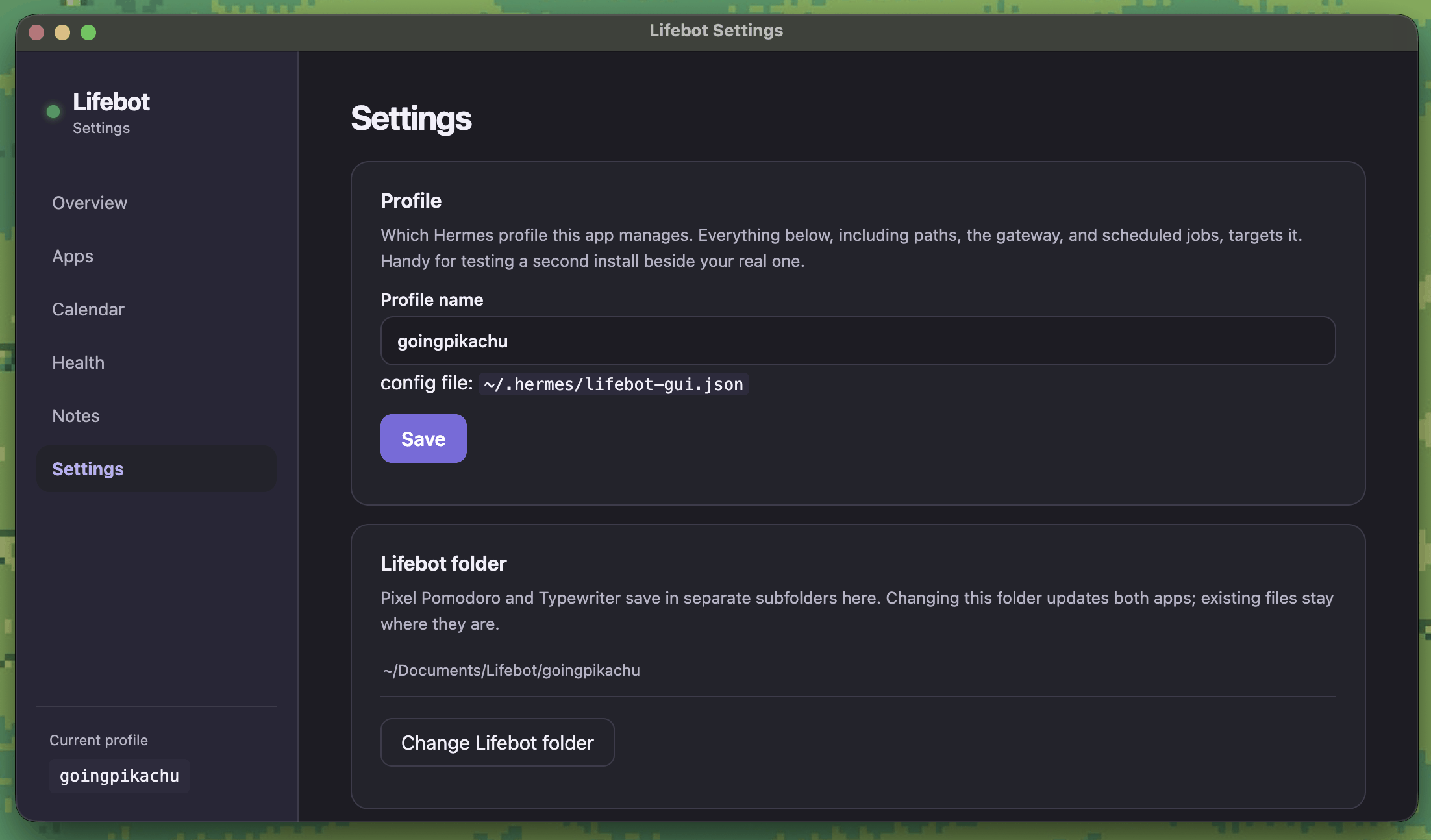
In Lifebot, go to Settings → Lifebot folder → Change Lifebot folder. Pixel Pomodoro and Typewriter both switch to the new folder. Older sessions stay in the old file, so move it yourself if you want to keep your history together. The Lifebot Apps tab shows where it's saving now and whether there's fresh data.

Lifebot Settings: the Profile name box and the Lifebot folder card with its Change Lifebot folder button
Settings: Lifebot folder
Help

Troubleshooting

Click the one that sounds like your problem.

I press Enter and nothing happens

  • Click inside the minutes box or the task box first, then press Enter.
  • Why: after you drag the buddy or click its dot, your keyboard isn't "in" those boxes any more.

The alarm won't stop

  • Click the buddy so its window is the active one, then press Enter.
  • Why: Enter is the only thing that stops the alarm, and it only works when the buddy is the active window.

Lifebot says it has no Pomodoro data

  • Open Lifebot's Apps tab. The Pomodoro log card should say updated … ago.
  • It says "no data yet"? Make sure you pressed LOG at the end of a session, not SKIP. Skipped sessions aren't saved.
  • Check the folder under Settings → Lifebot folder is the one you expect.
  • Then start a fresh conversation (/new in Telegram or Discord, or a new chat in Hermes Desktop) and ask again.

I used Pixel Pomodoro before installing Lifebot and my old sessions are missing

  • In Lifebot, open Apps and click Find existing app data. It finds your old Documents/PixelPomodoro folder and offers to use it.

Can I turn the sound off?

  • Not inside the app. Lower or mute your computer's volume instead. The flashing and the shake still tell you time's up.