🐙Lifebot · by Lonely Octopus
Using Lifebot

Use Lifebot in daily life

So it's installed. Now what? Here's the honest answer: you leave a tiny trail every day, a checklist and a timer, and Lifebot reads it and tells you what it actually says. This page shows you what that looks like, how to make Lifebot sound like yours, and what to do when something's off.

In this guide

What's in this guide

You don't need to read it top to bottom. Parts 1 and 2 are the ones to read once. The rest is for when you want it.

Part one · 2 min read

The tools, in two minutes

Lifebot is three apps. Two small ones record your day. The third one reads what they wrote, plus your notes, calendar and sleep, and answers your questions. That's it. That's the whole system.

⏱️ Pixel Pomodoro
✅ Typewriter

You focus and tick things off. They save plain files in Documents/Lifebot.

→

🐙 Lifebot

Reads those files plus your notes, calendar and Oura. Never edits them.

→

💬 You

Ask in Telegram, Discord or Hermes Desktop. Get an evening summary every night.

You talk to Lifebot like you'd talk to ChatGPT. The difference is what it knows. It has read your focus sessions, your checklists, your calendar and your notes, so "how did today go?" gets an answer about your day, not a generic one. And your data stays local: your logs, notes and settings live on your computer, not on our servers. Only what's needed to answer a question goes to the AI model you chose, and with a local model, nothing leaves your machine at all.

How Lifebot behaves. It won't invent a number. If data is missing or old, it says so. It won't nag you to work harder or tell you to rest unless you ask it to; by default it shows you what happened and lets you decide. And it won't promise to check in later unless it has actually scheduled a job to do it. All of this is a starting point, not a rule. If you want it chattier, stricter or quieter, Make Lifebot yours shows how.

Lifebot, the app

The Lifebot window is for settings and data sources, not for chatting. Chatting happens in Telegram, Discord or Hermes Desktop. Five tabs on the left:
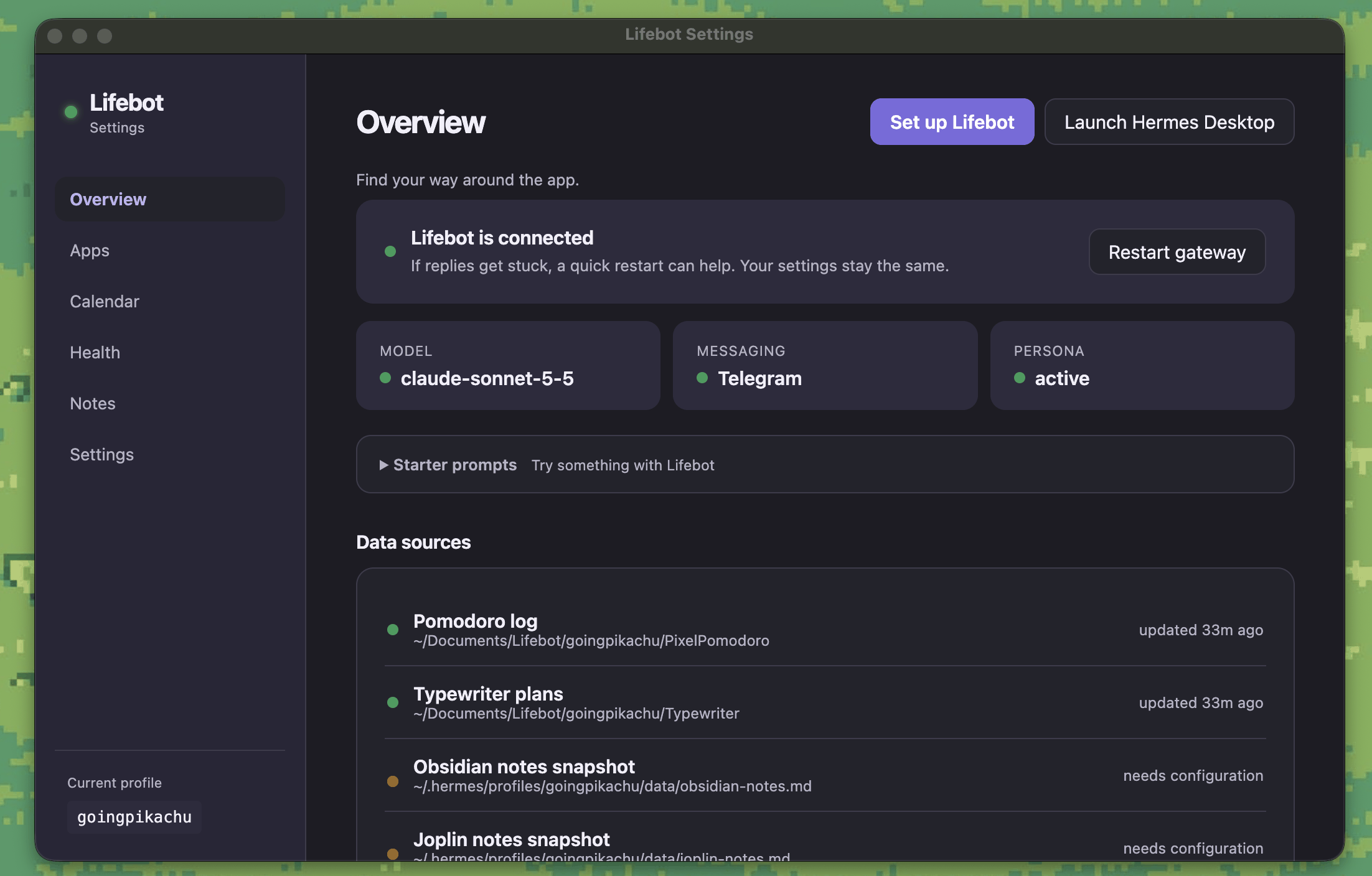
Lifebot's Overview tab: Lifebot is connected with a Restart gateway button, the model, messaging and persona cards, and the Data sources list
Overview: Lifebot is connected

Overview

Is Lifebot running, which AI it uses, how fresh your data is. Restart gateway fixes most things.

Apps

Open Pixel Pomodoro or Typewriter, see where they save, find data from before Lifebot.

Calendar, Health, Notes

Your sources. Refresh snapshot now to update one, Current snapshot to see what Lifebot sees.

Settings

Lifebot folder, time zone, run at startup, and what it's allowed to remember.

Lifebot runs on Hermes Agent, an open-source AI agent. Launch Hermes Desktop on Overview opens Hermes's own app, and that's one of the two places you chat with Lifebot. Prefer your phone? Connect Telegram or Discord and message your bot like a person. Same Lifebot, same memory, either way. Hermes Desktop also shows every skill, scheduled job and model setting, if you ever want to look under the hood. /new starts a fresh conversation in any of them.

Pixel Pomodoro in one minute
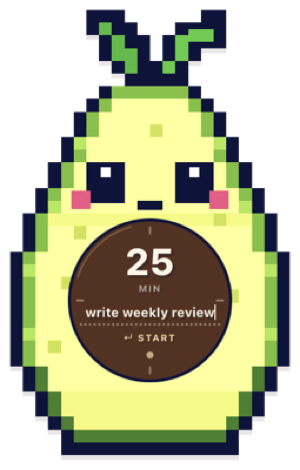
Pixel Pomodoro avocado buddy with 25 MIN and a task field

A little always-on-top timer buddy.

  • Start: type minutes and a task, press Enter.
  • When it rings: press Enter, add a note, LOG.
  • Giving up early is fine: Ctrl + C, say why, and it's logged as abandoned. That note is gold later.

Full Pixel Pomodoro guide →

Typewriter in one minute

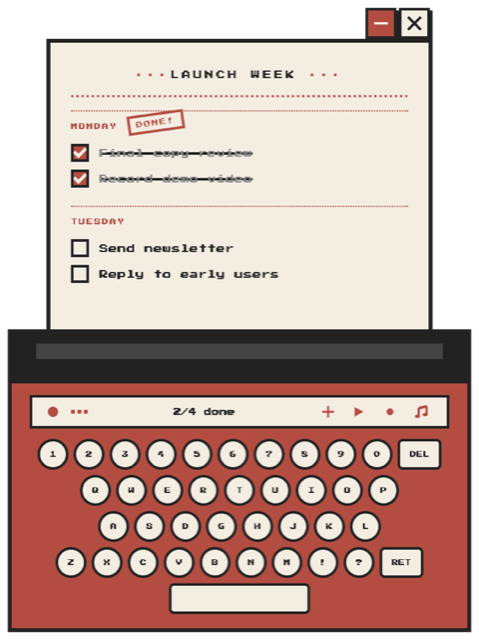
Typewriter with a Launch Week checklist

A pixel typewriter that turns your checklist into paper.

  • Write: type a to-do and press Enter, or paste a whole list.
  • Tick: click an item when it's done.
  • Every tick is saved with the time, which is how Lifebot knows what you finished today.
Full Typewriter guide →

Part two · 1 min read

A normal day with Lifebot

A checklist in the morning, a timer when you sit down, a tick when you're done. That's the whole trail. First time? Do the ten-minute Try it step in the install guide; it has a demo of each step.

  1. Morning: put today on paper 2 mins

    Type three to six things into Typewriter, or ask Lifebot and paste its answer in:

    Look at my calendar for today and what I left unticked yesterday, and give me a checklist of five things for today. Short lines, no sections.
  2. During the day: one item, one timer as you work

    Start a Pomodoro named after the top item. Log it when it rings, tick the item. Pulled away? Ctrl + C, say why. Not sure whether to keep going?

    Given how today has gone so far, should I do another session or stop?
  3. Evening: read the summary 2 mins

    At 9:25 pm the Evening summary lands on Telegram or Discord. Reply to it like a friend:

    What did I leave undone, and when did I lose focus today?
  4. Once a week: look at the pattern 5 mins

    Compare this week with last week: focus hours by day, finished versus abandoned sessions, and what I kept postponing on my Typewriter lists.

    Like the answer? Make it run by itself every week.

Asking for a daily summary
Missed days are fine. There's no streak to protect. A week with two logged days gets you a two-day answer, not a wrong one.
Part three · 4 min read

Make Lifebot yours

Lifebot ships plain and neutral on purpose. Most of what you'll want to change, you change by telling it. A few things live in the Settings tab. Pick what you want to change.

Just tell it, in the chat, and be specific.

From now on: shorter answers, plain tone, numbers first, no encouragement and no "great job".
That summary was too long and too upbeat. Next time: five bullets, plain tone, numbers first.
What do you remember about me?To undo something: "Forget the thing about weekends."
  • New preferences apply to new conversations, so send /new afterwards.
  • Corrections are exactly what it learns from. Say what was wrong and what you wanted instead.

Want to rewrite the personality itself? It's a plain text file called SOUL.md in your profile folder:

  • Mac and Linux: ~/.hermes/profiles/
  • Windows: %LOCALAPPDATA%\hermes\profiles\
  • Edit it, save, then click Restart gateway on Overview.
  • Broke it? Settings → Reset persona to defaults puts the original back and keeps a backup of yours.
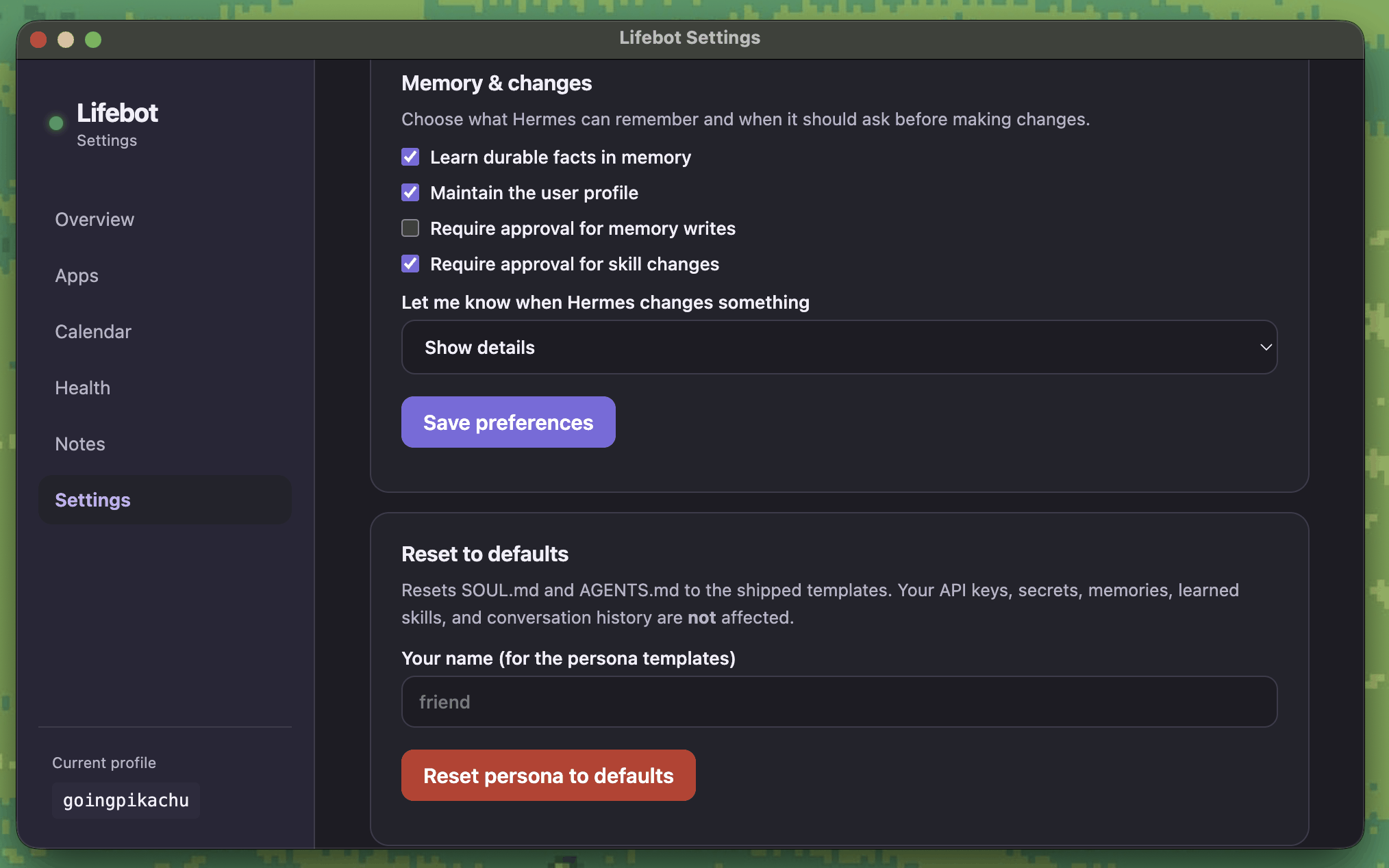
Lifebot Settings: the Memory & changes switches and the Reset to defaults card with its Reset persona to defaults button
Settings: Reset persona to defaults

It's a scheduled job, so you change it by asking:

Move my evening summary to 10pm, and skip it on weekends.
Make the evening summary five bullets: focus minutes, items ticked, one insight, one suggestion for tomorrow. Skip the health part.
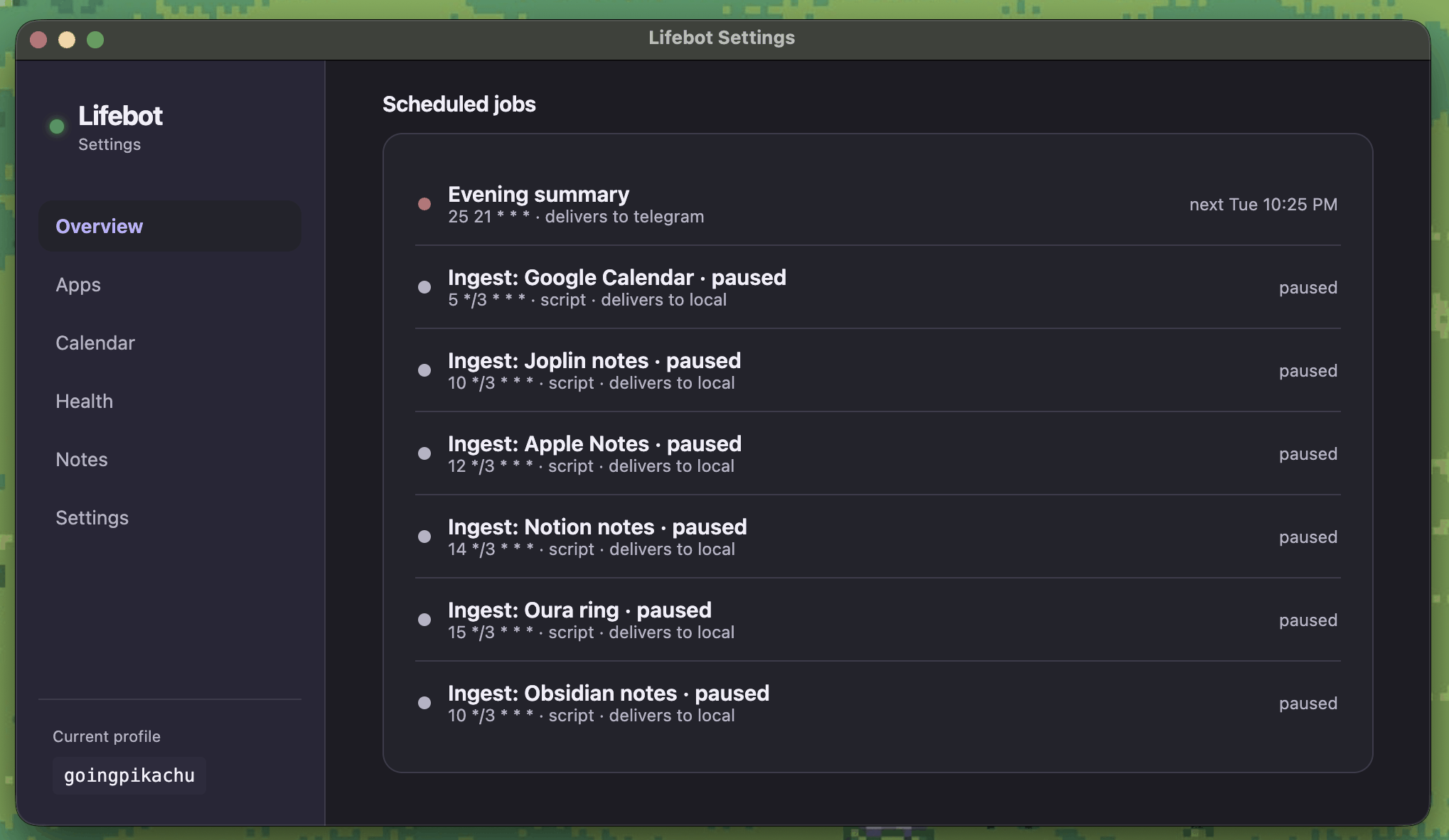
  • Check the new time under Scheduled jobs on Overview.
  • It arrives on the home channel you set in the wizard, Telegram or Discord.
  • Skipped messaging? Add one in Set up Lifebot, or there's nowhere to deliver it.
  • Everything Lifebot reads is in four tabs: Apps, Calendar, Health and Notes. Nothing else on your computer is read.
  • To add a source, fill in its card (a calendar link, an Oura token, a notes folder). To remove one, clear its card again.
  • Each card has a window setting (how many days back it reads) and Current snapshot (exactly what Lifebot sees).
  • Notes: you choose which folders or pages it can read, by ticking them in the Notes tab. Everything else is ignored.
  • To hide part of a note, start the line with private: or put it under a heading called # private. Lifebot skips those parts.
  • Where the apps save is Settings → Lifebot folder. Change it and both apps follow; old files stay where they were.
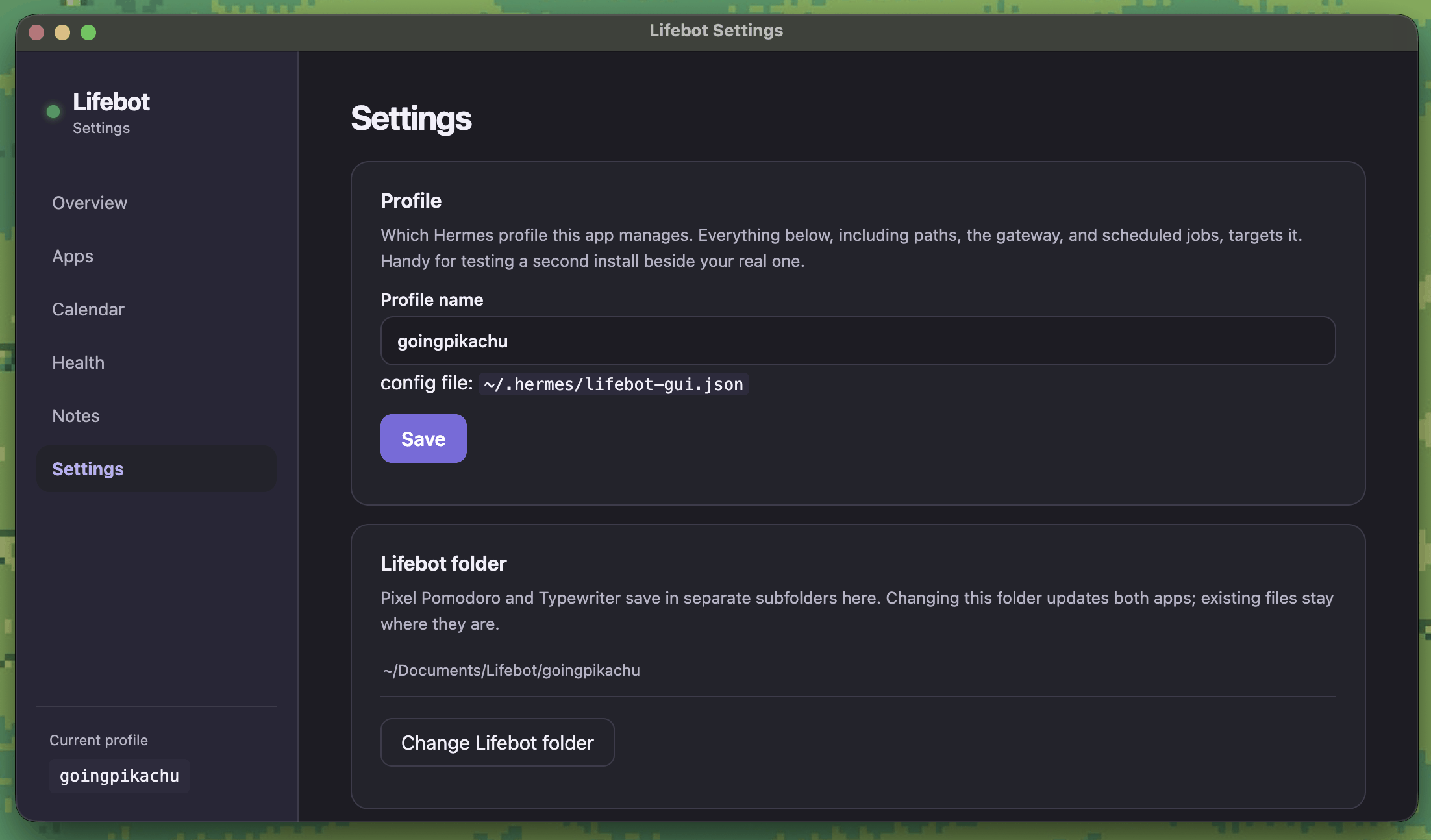
Lifebot Settings: the Profile name box and the Lifebot folder card with its Change Lifebot folder button
Settings: Lifebot folder

Use an app Lifebot doesn't know, like a habit tracker, a mood log or a spreadsheet? If that app can export its data to a file, Lifebot can learn to read it. You don't write any code. You describe the file and Lifebot builds the connection itself.

I export my habit tracker every night to ~/Documents/Habits/habits.csv (columns: date, habit, done). Add it as a new Lifebot data source, following the "Adding a new source" rules in integrations/README.md, with a job that refreshes it every 3 hours. Run it once and show me the snapshot.
  • Change the details to match your file: where it is, and what the columns mean.
  • Lifebot shows you each step before it does it. Say yes if it looks right.
  • At the end it shows you what it read from your file. Check that it makes sense before you rely on it.
  • From then on it's a normal source: refreshed every 3 hours, and you can ask about it like anything else. "How consistent were my habits this week?"
  • Building a source uses your AI plan. It's a long conversation with the model you connected in Connect AI, and every step is a call, so a big source with many columns can mean a lot of calls in one go. On a subscription plan with a usage cap, such as ChatGPT's, that can use up your allowance for the day. Start with a few columns and add more later. Once a source exists, reading it is light: one call for the evening summary and one per question you ask.
  • As installed, Lifebot saves facts about you on its own but asks before adding or changing a skill.
  • To change that, go to Settings → Memory & changes: ask before saving facts too, or stop learning altogether.
  • Then Save preferences and Restart gateway on Overview.
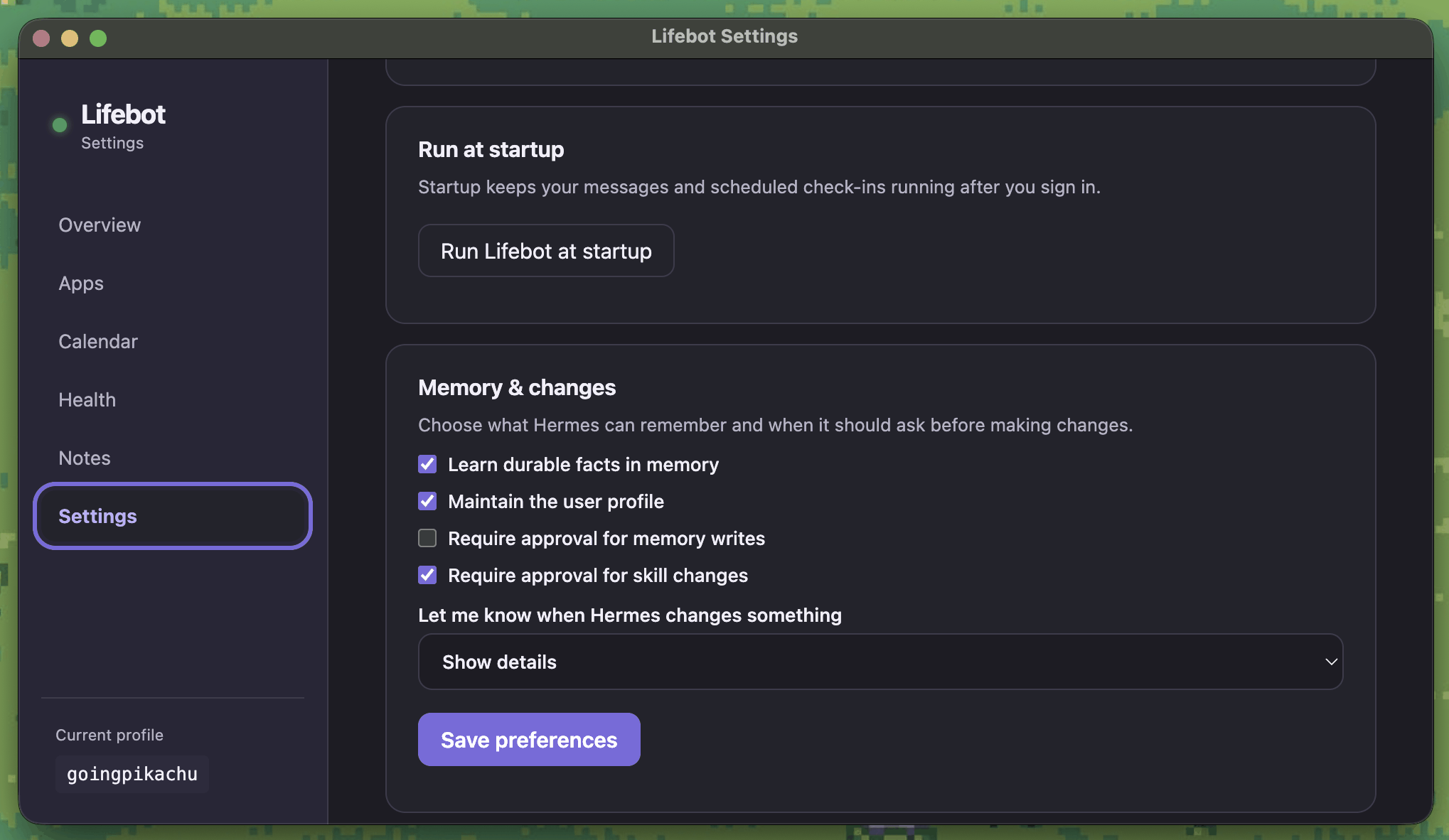
Lifebot Settings: Run at startup, and the Memory & changes switches with Save preferences
Settings: Memory & changes

You can also hand it facts that change how it reads your data:

Remember: I do my best deep work before 11am, I don't want check-ins on weekends, and I count anything over 20 minutes as a real focus session.
  • Lifebot uses whatever model is set in Hermes.
  • To change it, open Set up Lifebot on Overview, go to Connect AI and click Open Hermes Desktop. In Hermes, pick your Lifebot profile; its name is at the bottom left of the Lifebot window.
  • Your data, memory and jobs are untouched by a model change.
  • Want to send it food photos? Pick a model that can see images.
  • Want it to run on your own computer? See Use a local model below.
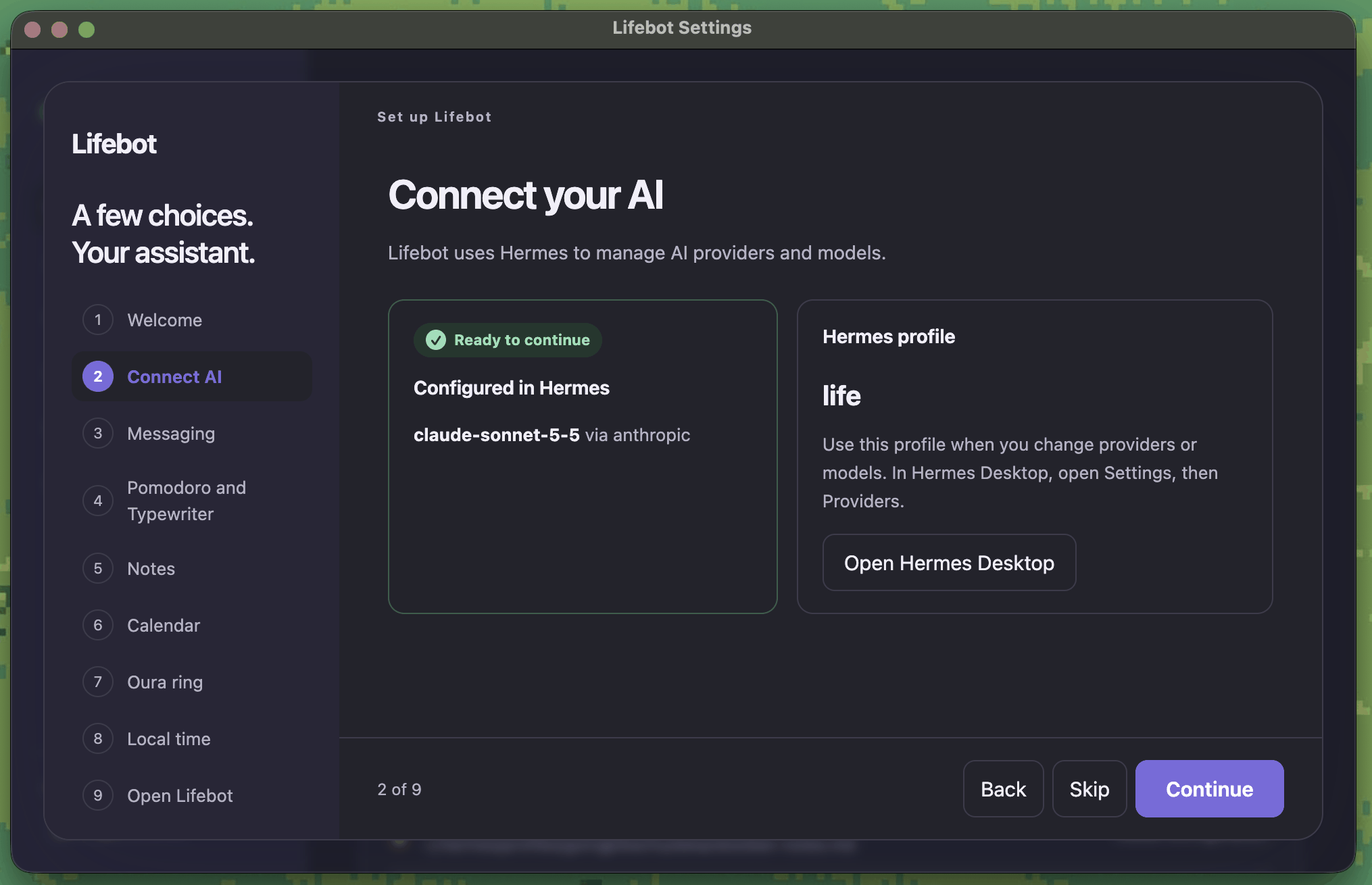
The Connect AI step of Set up Lifebot: the model configured in Hermes, and the Open Hermes Desktop button
Set up Lifebot: Connect AI
  • Settings → Timezone: follow your computer, or pick a fixed zone. This is what "today" and "9:25 pm" mean to Lifebot.
  • Settings → Run at startup: turn this on. Lifebot's background service is what answers on Telegram and sends the evening summary, and after you restart your computer it only comes back if this is on.

A skill is a saved set of instructions Lifebot runs again by name. Anything you'd otherwise re-explain every week:

Create a skill called weekly-review. When I run it, look at the last 7 days of my Pomodoro log, Typewriter plans and calendar. Tell me: total focus hours by day, my best and worst focus day, which plans I finished or abandoned, and 3 things I kept postponing. Keep it under 200 words.
  • Lifebot writes it and waits for your OK. It says the skill is staged for approval.
  • Approve it with /skills pending then /skills approve in Telegram or Discord, or in Hermes Desktop's Skills pane.
  • Run it any time with /weekly-review, or just "run my weekly review".

If you've ever thought "I wish it would just do this every day", that's a scheduled job. Ask for it in plain language:

Every weekday at 8am, send me a morning overview on Telegram: today's calendar, what's still open on my Typewriter list, and how much I focused yesterday.
Every Sunday at 6pm, look at next week's calendar and send me a checklist for Monday, in a format I can paste into Typewriter.
Every Friday at 5pm, run my weekly-review skill and send me the result.
Remind me at 3pm today to call the dentist.One-time jobs delete themselves after they run.
  • It shows up under Scheduled jobs on Overview with the time it runs next. Check that time is the one you meant, since Lifebot works out the schedule from your words.
  • To manage them, just ask: What scheduled jobs do I have?, Pause the morning overview until Monday, Delete the 3pm reminder.
  • Two things make jobs work: Lifebot's service is running (Overview says Lifebot is connected, Run at startup is on), and your computer is awake at that time.
  • To get them on your phone, connect Telegram or Discord.
Scheduled jobs on Lifebot's Overview: the Evening summary with its next run time, and the ingest jobs for calendar, notes and Oura
Overview: Scheduled jobs

Use a local model

Want the thinking to stay on your computer too? Hermes can run a model locally: its own Local Models option, Ollama or LM Studio. The demo shows the whole thing with Ollama.

You'll need a model that can use tools (reading your logs is a tool call) and a big computer. Hermes recommends gemma4:31b: about 20 GB of disk and 24 GB of memory.
  1. Add it in Hermes Desktop. Either pick one under Settings → Providers → Local Models, or add yours under Custom Endpoints: address http://127.0.0.1:11434/v1 for Ollama or http://127.0.0.1:1234/v1 for LM Studio, no API key, Test, Save.
  2. Make it the main model. Settings → Model, pick it, Apply.
  3. Restart gateway on Lifebot's Overview, so Telegram and the scheduled jobs use it too.
Connect Ollama to Hermes Desktop

Then ask Lifebot What did I complete today? If it answers with the sessions from your Pomodoro log, you're set. If it says it can't read files, or the numbers don't match your log, the model isn't using tools; switch back to a cloud one. Scheduled jobs run on the same model, so expect them to be slower. We haven't tested local models with Lifebot ourselves yet; the cloud options in the setup wizard are the ones we know work well. Hermes's local setup guide has the details, including the 64,000 context length Ollama needs.

Part five · optional

Use cases

Wondering what to actually do with it? Pick the situation closest to your week. Each one has prompts you can copy with one click; change the details to fit you.

Typewriter holds today's writing tasks, one scene or section per line. Each Pomodoro is a writing session, and the note is where the word count goes: 1,200 words, chapter 3. Your drafts stay in your notes app, where Lifebot can read them if you ticked those folders.

Turn this chapter outline into a Typewriter checklist, one scene per line, nothing else: [paste your outline]Then paste the answer into Typewriter.
Go through my Pomodoro notes for the last 30 days and pull out every word count. Give me words per day, the hours when I write most, and the sessions I abandoned mid-draft with their notes.

Name each Pomodoro after the client or project, like acme: proposal, and keep one Typewriter plan per day. Lifebot can then split your focus time by project, which no timer does on its own.

How many focus hours did each client or project get this week? Use the task names in my Pomodoro log.
Which project do I keep abandoning sessions on, and what do my notes say about why?

With your calendar connected, Lifebot sees your events seven days back and ahead, next to your focus log. That's enough to show what meetings cost you and where the gaps are.

Compare my calendar load with my focus time for each day this week. Which days did I actually get work done?
Looking at next week's calendar, where are the two-hour gaps I could block for deep work?

If you connected an Oura ring, Lifebot has your sleep, readiness and activity scores next to your focus log. It won't give health advice. It shows what the two logs say together, once it has 14 nights of data.

On days when my readiness was low, how did my focus compare with my usual day?
Given last night's sleep and today so far, should I push on or stop?

Paste a syllabus or reading list into Typewriter and it becomes a checklist with a section per week. Name each Pomodoro after the subject, and Lifebot can tell you where your hours really went.

Turn this into a revision checklist with one section per week, short lines: [paste your syllabus]Then paste the answer into Typewriter.
How many hours did I spend on each subject this week, and which one did I avoid?

This one needs Telegram or Discord, because that's where you can send a photo, and an AI model that can see images (the ChatGPT, Anthropic and OpenAI options can).

Create a skill called food-log. When I send a photo of a meal, estimate the calories, protein, carbs and fat, tell me in one line, and add a row with the date, time, meal and numbers to a food-log.md file in my Lifebot folder. When I ask "food today", total up today's rows.
Food today. And how does my protein this week compare with last week?

Estimates, not measurements. Photo calorie counts can be way off, especially for sauces and portions. Treat them as a rough trend, and a caption like "half portion" helps.

Part six · optional

Optional: Vibe coding

Lifebot comes with its source code. The fourth download, lifebot-kit-source.zip, has the Lifebot app, Pixel Pomodoro and Typewriter as small projects you can change with a coding agent like Claude Code. You don't need to read code. You describe the change, the agent makes it, rebuilds the app and installs it.

If you just want Lifebot to talk differently, or your summary at another time, you don't need any of this. See Make Lifebot yours.

Ask a coding agent to change Pixel Pomodoro, then test the rebuilt app
  1. Unzip lifebot-kit-source.zip. Inside are three folders: lifebot/gui, pixel-pomodoro and typewriter.
  2. Quit the app you're about to change. Open your coding agent and start a session in that app's folder.
  3. Ask for the change in plain language, and ask it to build and install the result over the app you have.
When the timer ends, make Pixel Pomodoro shake harder and for longer, about five seconds instead of two. Don't change anything about the log file. Then build it and install it over the one in my Applications folder.

The app you open is a built copy, so every change ends with the agent rebuilding and installing it. That takes a minute or two, and sometimes a couple of tries. Normal. Ask it to run the app's tests before it builds.

Reference

What Lifebot can and can't do

It canExamples
ReadPomodoro sessions and notes · Typewriter plans and tick times · the Obsidian, Joplin, Apple Notes and Notion folders you chose · calendar events 7 days back and ahead · Oura sleep, readiness and activity · photos you send on Telegram or Discord · the web, when you ask
AnalyzeFocus time per day and week · completed versus abandoned sessions · your most productive hours · what keeps getting postponed · calendar load versus focus · sleep versus focus (after 14 nights) · themes in your notes
ScheduleRecurring summaries and check-ins · one-time reminders · refreshing your sources every 3 hours
RememberYour preferences and facts you tell it · skills it creates for you
It can'tWhy
Change your sourcesIt only reads your notes, calendar and health data. It never edits or deletes them.
See what you haven't connectedNo access to other apps, email, or folders you didn't choose.
Run while your computer sleepsScheduled jobs need your computer awake and Lifebot's service running.
Know exact calories or sleepPhoto estimates are rough. Oura scores are Oura's own 0 to 100 scores, not medical measurements.
Reference

When something isn't working

Click the one that sounds like your problem. Whatever it is, Restart gateway on Overview is the first thing to try: it takes a few seconds and changes nothing else.

  • Look at the big card at the top of Overview. It should say Lifebot is connected. If it says Let's get Lifebot connected instead, the background service isn't running: click Start gateway.
  • Telegram: check your user id. Open Set up Lifebot → Messaging. The Allowed user id must be a number, the one @userinfobot replies with when you message it on Telegram. Your @username doesn't work there.
  • Telegram: one bot, one Lifebot. If the same bot is also running on another computer, or in another program, Telegram delivers your messages to only one of them. Stop the other one.
  • Discord: let the bot read messages. In the Discord Developer Portal, open your bot, go to the Bot tab and turn on Message Content Intent. And in a server channel, start your message with @ and the bot's name; in a direct message you don't need to.
  • Then click Restart gateway on Overview so the changes take effect.
  • Your computer was awake at 9:25 pm with Lifebot's service running. Turn on Settings → Run at startup.
  • Messaging has a home channel. Check it in Set up Lifebot on Overview.
  • Still nothing? Ask Lifebot to look, in Telegram or Discord if they work, or in the Hermes Desktop app:
My evening summary didn't arrive last night. Check the scheduled job, the gateway log and the delivery settings, and tell me what happened.
  • Open the Apps tab. Each card should say updated … ago and show the folder you expect.
  • It says "no data yet"? Make sure you pressed LOG in Pixel Pomodoro (not SKIP) and ticked items inside Typewriter.
  • Used the apps before installing Lifebot? Click Find existing app data.
  • Moved the folder? Set it again in Settings → Lifebot folder.
  • On a Mac, the service may need permission to read your Documents folder. Look for a waiting macOS prompt.
  • Then send /new and ask again, or ask Lifebot:
Which of my data sources are stale or not configured, and what do I need to do for each?
  • What it means: a key expired, credit ran out, or a sign-in lapsed.
  • The fix: open Hermes Desktop from Overview, or from the Connect AI step of Set up Lifebot, and repair the provider there.
  • Your data and memory are not affected.
  • Send /new in Telegram or Discord, or start a new chat in Hermes Desktop. New preferences, memories and settings apply to new conversations.
  • Changed the time zone, memory or persona? Those also need Restart gateway on Overview.
  • A calendar event is missing? Google is slow to update the secret link sometimes. Wait a bit and ask again.

Lifebot can read its own logs and settings, so tell it what you expected and what you got:

You didn't mention my Typewriter list. Check sources.json and the Typewriter folder, tell me what you find, and fix it if you can.
  • It may ask permission before running a command. Read what it wants to run; if it makes sense, reply /approve.
  • Still stuck? Run these in Terminal (Mac, Linux) or PowerShell (Windows), with YOUR_PROFILE replaced by your profile name from the bottom left of the Lifebot window, and send us the output with what you were trying to do.
hermes doctor hermes -p YOUR_PROFILE gateway status hermes -p YOUR_PROFILE logs errors -n 50

Want to start the personality over? Settings → Reset persona to defaults. Keys, memories, skills and jobs stay.

Lifebot Settings: the Memory & changes switches and the Reset to defaults card with its Reset persona to defaults button
Settings: Reset persona to defaults